
HubSpot's latest updates make it easier to manage pricing, quotes, contracts, and everyday CRM work. They also bring improvements to AI, sales, marketing, customer support, and reporting. Here's what's new, how the features work, and what to watch out for.
HubSpot has rolled out updates across nearly every part of the CRM. From managing pricing and contracts to handling support tickets and keeping data organized, there's a lot to catch up on.
We'll walk through seven key areas, explain how the new features work, share practical examples, and point out the limitations worth knowing before you put them to use.

Key Takeaways
- Revenue Hub: Manage pricing, quotes, contracts, and payments in one connected process.
- AI: Put Data Agent and Claude to work, with human review before CRM changes.
- Sales Hub: Book meetings faster, add more approvers, and apply more pipeline rules.
- Workflows: Reference newly created records and clean up workflow folders.
- Marketing Hub: Reuse emails across campaigns, adjust tracking, and unpublish forms.
- Service Hub: Improve AI support, ticket emails, and skill-based routing.
- Reporting & Data: Dig deeper into reports, spot duplicates, and manage your data model in one place.
1. Revenue Hub: Pricing, Quotes, Contracts, and Revenue Management
HubSpot Revenue Hub brings more of the revenue process into one place, from setting product prices and creating quotes to managing contracts and tracking payments.
And pricing information is becoming more important earlier in the buying process. According to HubSpot's 2025 State of Sales research, 40% of sales teams expanded their self-service resources, including pricing pages, free trials, and customer stories, during the previous year.
That makes it important to keep pricing information organized and consistent as customers move from researching their options to receiving a quote.
Revenue Hub's updates go beyond creating a quote and getting it signed. They give teams ways to manage different pricing options, see how contracts change over time, and add rules that help prevent mistakes.
What Is HubSpot Revenue Hub?
Revenue Hub connects more of the steps between closing a deal and collecting payment. Instead of treating quotes, contracts, and invoices as separate pieces, it brings them into a connected revenue process.
Here's how the sales-led process works:
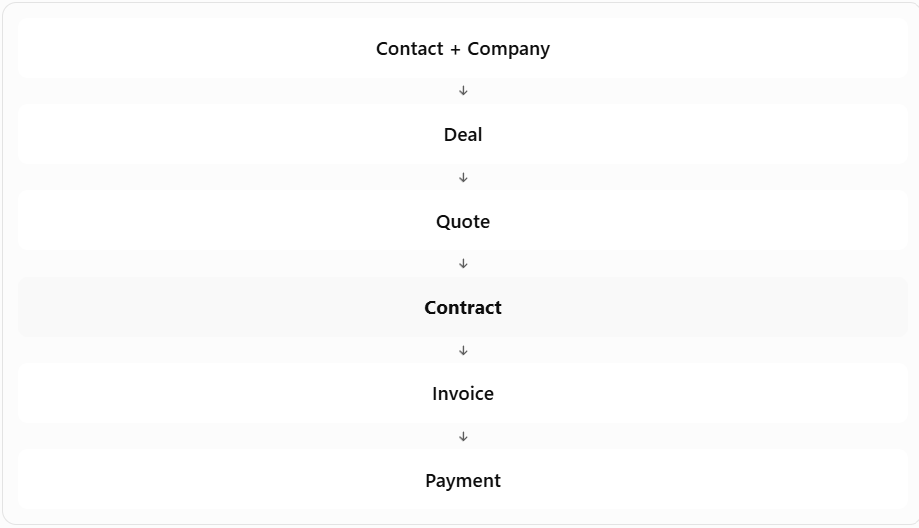
It starts with a contact and company associated with a deal. Once there's a sales opportunity, the team creates a quote and associates it with that deal.
When a contact signs the quote, HubSpot generates an order and a contract record. The contract then connects to the invoicing process, whether the business uses HubSpot invoices or a third-party system. From there, the process moves to payment.
The deal, quote, and contract stay connected, giving teams a clearer view of the customer's revenue history.
Revenue Hub also includes orders, subscriptions, and other revenue journeys, such as invoice-based and self-service purchases.
Tiered Pricing Helps Manage Product Variations
Not every product has one fixed price. A business might offer different pricing options for the same product, which can quickly make its product library difficult to manage.
Tiered pricing gives teams a way to handle different pricing structures directly in HubSpot, and addresses that problem without requiring every variation to be managed as a completely separate product.
The result is a simpler way to organize products that have more than one pricing option.
Price Books Support Different Prices for the Same Product
Price books offer another way to organize pricing.
Teams can add products to price books and set different prices for the same product based on specific criteria. They can also manage prices in different currencies.
Those pricing options can then be used when adding line items to a deal.
Instead of searching through multiple versions of a product, users have a more organized way to work with the available prices.
One limitation to know: Price books aren't fully enforceable. They improve the experience of selecting and organizing prices, but they shouldn't be treated as a complete system for enforcing every pricing rule.
Revenue Hub Quotes vs. Legacy Quotes
HubSpot's newer Revenue Hub quoting experience is different from the quotes previously available through Sales Hub.
The older Sales Hub quotes are now referred to as legacy quotes. Existing customers who were already using them could retain access, while the newer Revenue Hub experience offers a different approach.
One important change is the connection between quotes and contracts.
With Revenue Hub, a signed quote feeds into the process that generates a contract record. That means the quote isn't just a document used to close a deal. It's also connected to what happens after the customer signs.
How the Contract Object Works
The contract object gives teams a record of the agreement created from a signed quote.
Here's how the process works:
- A quote is created and associated with a deal.
- A contact signs the quote.
- HubSpot generates an order and a contract record.
- The contract stays connected to the deal and quote.
- The contract supports the next step in the process: invoicing.
Invoicing can happen through HubSpot or a third-party system.
Because these records are connected, teams can follow the agreement from the original deal through the signed quote and into the contract.
That becomes especially useful when the agreement changes.
Managing Contract Changes in Revenue Hub
Contracts don't always stay the same after they're signed. Customers might downgrade, upgrade, or renew for another term.
Revenue Hub keeps these changes visible in the contract history, making it easier to understand how an agreement has changed over time.
Three examples:
Downgrades
If a customer has an active RevOps as a Service contract and decides to downgrade, a change quote can be created to reflect the new agreement. Once the customer accepts the change and the process is completed, the update appears in the contract history.
Instead of seeing only the customer's current agreement, teams can also see that a downgrade took place.
Upgrades
If a customer moves from a Bronze package to a Silver package, the Bronze package is canceled and Silver is added.
Both changes appear in the contract history, so teams can see what the customer previously purchased and what replaced it.
Renewals
Renewals work a little differently.
When a customer secures another term, the existing contract indicates that a renewal is in place. It's also associated with the future contract.
That future contract appears with a scheduled status.
This makes it easier to distinguish the agreement that's active today from the next term the customer has already committed to.
Across all three scenarios, the goal is the same: keep contract changes connected so teams can follow the customer's agreement over time.
Quote Rules Add Requirements and Warnings
Quote rules help teams catch issues while they're building quotes.
Some rules can prevent a user from saving a quote when a requirement isn't met. Others can display a warning without stopping the user.
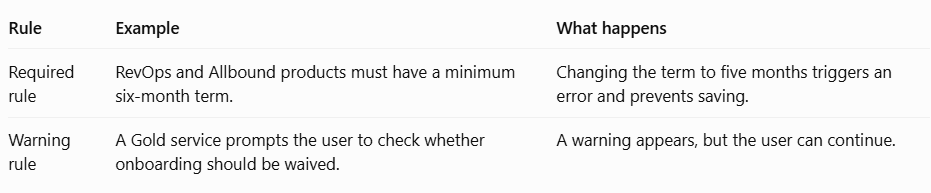
The difference is simple: a required rule blocks the action, while a warning gives the user something to double-check.
The broader takeaway is that teams can use quote rules to add checks to their quoting process, whether they need to enforce a requirement or simply flag something for review.
What About Revenue Hub Reporting?
Revenue Hub reporting was still developing as of September 2026.
Native reporting was available for payments, quotes, and subscriptions. Waterfall reporting had also recently entered private beta, but it wasn't generally available at that point.
So while Revenue Hub connects more of the revenue process, teams should distinguish between the reporting features already available and those still in beta.
2. HubSpot AI: Data Agent, Smart Properties, and Claude
HubSpot's AI tools can help teams work with CRM data, automate manual tasks, and get more out of the tools they already have. And adoption is picking up. More than 55% of HubSpot Professional and Enterprise customers were using agents or Breeze Assistant by Q2 2026, while monthly agentic actions across its customer base had more than tripled since the start of the year.
The key is finding the right use cases, testing what works, and reviewing changes before they affect your CRM.
Here's how to get started with Data Agent, approach AI projects, and use HubSpot's Claude connector safely.
Getting Started With Data Agent Smart Properties
HubSpot Data Agent includes Smart Properties, which give teams another way to work with AI inside the CRM.
Adoption is growing quickly. HubSpot reported more than 16,000 activated Data Agent customers in Q2 2026, an 80% increase from the previous quarter.
But you don't need to build everything at once. Start with three to five Smart Properties, see how they fit into your existing processes, and expand from there.
Some Smart Properties may also need supporting workflows or additional setup to work as intended. It depends on what you're trying to accomplish, so make sure you understand what each one needs before putting it to work.
Start Small With AI Use Cases
AI is already part of how most sales teams work. According to HubSpot's 2025 State of Sales research, only 8% of surveyed sales professionals said they weren't using AI at all, while 84% said AI saves time or helps optimize their processes.
But having access to AI doesn't automatically tell you where to use it.
A good starting point is to identify a few problems your team wants to solve, test AI on those specific tasks, and see what works before expanding its use.
At RevPartners, our AI Launch approach follows that process:
- Identify opportunities. Look at where your team spends time and where AI might help.
- Choose a few use cases. Focus on a small number rather than trying to automate everything.
- Experiment. Build and test those use cases.
- Learn from the results. See what works and what needs to change.
- Scale what works. Expand the use cases that prove useful.
The goal is to find useful applications, learn from them, and expand with a clearer understanding of what works.
HubSpot's Claude Connector
HubSpot's AI connectors are seeing significant adoption. In September 2026, HubSpot reported more than 350,000 weekly active users across its OpenAI, Anthropic Claude, and Google Gemini connectors. The company also reported that connector users had retention rates roughly 12 percentage points higher than non-users.
With more people using AI alongside their CRM, it's important to understand what each connector can actually do.
HubSpot's direct Claude connector allows Claude to work with CRM data, but its capabilities are changing quickly. Custom objects are one example, with support recently added as of September 2026.
Because the connector is evolving, don't assume it supports every CRM object or action. Check HubSpot's knowledge-base documentation before building a process around it.
In particular, look at the table showing which operations the connector supports, including:
- Reading CRM data
- Creating records
- Updating records
- Deleting records
The supported actions can change, so the documentation is the place to check what the connector can do at the time you're using it.
Review CRM Changes Before Executing Them
Giving Claude access to CRM data is one thing. Letting it change that data requires more care.
According to HubSpot research, 46% of surveyed sales professionals using AI agents said data-quality problems negatively affect their sales efforts.
An incorrect update could make those problems worse, affecting records your sales, marketing, or customer success teams rely on. That's why it's important to keep approval enabled for actions that write changes back to HubSpot.
A simple process is:
- Ask Claude for a plan
- Review the proposed changes
- Approve the changes
- Execute
Start by asking Claude to explain what it plans to change. Review those proposed changes, make sure they're correct, and approve them before execution.
The important distinction is that Claude can carry out the action, but your team is still responsible for the changes made to the CRM. Keeping a review step in place helps prevent mistakes before they affect your data.
3. Sales Hub and CRM: Meetings, Approvals, and Pipelines
HubSpot has introduced a few updates that make everyday sales and CRM work easier, including meeting scheduling, deal approvals, and custom object pipelines.
Here's what changed and where each update could be useful:
Book Meetings Directly From Sales Workspace
For sales teams working in HubSpot's Sales Workspace, meeting scheduling is getting a little easier.
A scheduler allows users to book meetings directly from Sales Workspace, giving reps a way to schedule meetings within the area where they're already managing their sales activities.
It's a relatively small update, but a useful one for teams that rely on Sales Workspace throughout the day.
Deal Stage Approvals Now Support Up to 10 Approvers
HubSpot has increased the number of approvers supported in deal stage approvals from three to ten.
This gives teams more room to configure approval processes that involve multiple people.
For example, a larger organization might need several layers of approval before a deal can move forward. Another team might have multiple leaders who need the authority to approve deals.
HubSpot supports configurations that require approval from everyone or allow approval from any one of the designated approvers.
With the higher limit, teams can include more people in those approval configurations without being restricted to the previous maximum of three.
The update is particularly relevant for organizations with more complex approval structures or several leaders sharing approval responsibilities.
Custom Object Pipelines Gain More Rules and Validations
HubSpot is also expanding the functionality available in custom object pipelines.
Custom object pipelines can now use additional rules and validations comparable to those available in standard deal and ticket pipelines.
This gives teams more options for managing processes built around custom objects, particularly when those processes need rules to guide how records move through a pipeline.
For businesses using custom objects to manage workflows beyond standard deals and tickets, the update brings more pipeline controls to those processes.
The exact capabilities should still be checked for the specific pipeline you're configuring though, rather than assuming every feature works identically across all pipeline types.
4. Workflow Automation and Connected Apps
HubSpot's workflow updates give teams more ways to work with records created during automation, keep workflows organized, and manage connected apps.
Here are three changes worth knowing about:
Reference Newly Created Records in the Same Workflow
HubSpot workflows can now reference a record created earlier in the same workflow.
For example…if a contact submits a bottom-of-funnel form, that submission triggers a contact-based workflow, which creates a new deal.
Previously, working with that newly created deal could require additional automation. Now, later actions in the original workflow can reference the deal directly.
Here's how that could work:
- A contact submits a bottom-of-funnel form.
- A contact-based workflow creates a deal.
- A later action creates a task associated with that deal.
- Another action sends a notification based on the new deal.
This gives teams more flexibility when building workflows and can eliminate the need for a separate workflow in some situations.
There is one important limitation, though. As of September 2026, you can’t edit the newly created deal within that same workflow.
For example, if the workflow creates a deal and you want to update its properties afterward, you'll still need another workflow to handle those edits.
You can reference the new record for actions such as tasks and notifications, but editing it remains a separate step.
The Workflow Filing Agent Helps Organize Workflows
If you've ever opened a HubSpot account and found dozens of workflows sitting outside folders, this update is worth a look.
The Workflow Filing Agent helps organize those workflows by suggesting which folders they belong in.
It looks at workflows that aren't currently assigned to folders and compares their names and descriptions with existing folder names.
Based on that information, it suggests a folder for each workflow.
You can then review the suggestions and choose whether to accept or reject them.
This gives teams a way to clean up workflow organization without manually figuring out where every unfiled workflow should go.
Connected Apps Gets a Redesigned Interface
HubSpot has also redesigned the Connected Apps experience, making it easier to see and manage app-related information in one place.
The updated interface includes connected insights, a view of installed apps, approved apps, and notifications. Users can also create custom notifications.
For teams managing multiple integrations, the redesign provides a more organized place to review connected apps and their notifications.
5. Marketing Hub: Campaigns, Email Tracking, and Forms
HubSpot has introduced several Marketing Hub updates that make it easier to reuse campaign assets, manage email tracking, and clean up unused forms.
These changes address some common frustrations, especially for teams running multiple campaigns or managing a growing collection of marketing assets.
Associate Marketing Emails With Multiple Campaigns
Reusing a marketing email across campaigns used to create unnecessary work.
If a team wanted to use the same email in another campaign, it often had to clone the email and other related assets. Over time, that could leave the account filled with duplicate records and assets that were no longer being used.
HubSpot now allows marketing emails to be associated with multiple campaigns, so teams can reuse an existing email without creating another copy.
This is useful when the same email serves more than one campaign. Teams can reuse it without rebuilding the email or duplicating related automation.
The update also includes campaign data roll-ups. Relevant asset data, such as form submissions, can roll up to a campaign, with options to filter the data.
Control Open and Click Tracking for Individual Emails
Previously, managing email open and click tracking could be frustrating because the settings operated at a global level.
If you wanted to turn tracking off for one particular email, you couldn't make that change without affecting the broader tracking configuration.
HubSpot now allows teams to control open and click tracking at the individual marketing email level.
For example, you may not want an internal email sent to employees counting as opens and clicks in your marketing analytics.
With the update, you can turn off tracking for that specific email while leaving tracking enabled for other marketing emails.
The option is available in the email's settings or setup area under the Performance tab.
It’s important to note that the email must be unpublished before you can change this setting. If it's already published, you'll need to unpublish it first.
This gives teams more control over which emails contribute tracking data without changing the settings for every email in the account.
Unpublish Forms Without Deleting Them
Unused forms can pile up in HubSpot, especially when teams regularly create forms for campaigns, events, and other marketing activities.
Previously, there wasn't an option to unpublish a form. Teams could end up leaving unused forms in place or deleting them.
HubSpot now provides an Unpublish option, allowing teams to take forms out of publication without deleting them.
There's also a useful safeguard built into the process.
When you select the option to unpublish a form, HubSpot displays a warning showing where that form is currently being used.
That matters because a form might still be connected to an active page or another asset, even if you think it's no longer needed.
Before unpublishing a form:
- Review the warning to see where the form is being used.
- Remove the form from any places that still depend on it.
- Unpublish it once those dependencies have been addressed.
This gives teams a cleaner way to manage unused forms while reducing the risk of disrupting something that's still in use.
6. Service Hub: Customer Agent, Ticket Automation, and Routing
Service Hub's latest updates focus on handling incoming support questions, improving ticket communications, and getting tickets to the right people.
Customer Agent is a major part of that. Teams can configure how it responds, provide resources to guide its answers, and set rules for when a conversation should move to a person. There are also useful changes to automated ticket emails, screenshots in Help Desk, and skill-based routing.
Customer Agent Can Handle Initial Support Questions
Support teams get a lot of the same questions: How do I reset my password? Why can't I log in? Where do I go for help with my account?
Each question might be straightforward, but answering them repeatedly takes time, especially when new tickets keep coming in.
HubSpot's Customer Agent can serve as a first responder across channels such as website chat, in-product chat, and email. It can handle initial questions using the resources and instructions you've provided, giving customers a place to start when they need help.
For example, a customer who needs help resetting a password could begin with Customer Agent instead of waiting for a support rep to respond.
The goal is to give the agent enough information to handle appropriate questions while making it clear when a person needs to take over.
Training Resources and Agent Guidelines
Customer Agent gives teams several ways to configure its responses.
The training area lets you add resources that the agent can use when answering customer questions. There's also a separate guidelines area where you can define how it should communicate.
That includes more than choosing a general tone. You can provide instructions for:
- Tone and behavior: How the agent should sound and respond to customers.
- Answer length: Whether responses should be brief, including a specific word limit when appropriate.
- Formatting: Whether the agent should use bullet points to make instructions easier to follow.
- Scripted responses: How it should handle situations such as apologies and follow-up messages.
For example, you might instruct the agent to keep responses under 130 words and use bullet points when explaining a process. You can also define the language it should use when apologizing or following up with a customer.
These settings help teams shape the experience around the kinds of questions their customers ask. A short answer might work well for a login question, while a more structured response could help someone follow a series of instructions.
The important part is to configure both the information the agent can use and the way it should communicate that information.
Guardrails and Human Handoff
Some conversations need a human from the beginning.
HubSpot has improved Customer Agent's handoff rules, giving teams the ability to define custom conditions that go beyond individual keywords.
For example, a business may want conversations involving certain sensitive information to go directly to a support representative. Teams can configure handoff instructions for those situations so the agent knows when to transfer the conversation.
This is particularly important when deciding which questions Customer Agent should handle and which ones require human involvement.
The handoff rules need to reflect the business's requirements. Teams should review and test them against the situations they expect to encounter rather than assuming every sensitive conversation will automatically be identified.
A clear handoff process helps keep the agent focused on appropriate support questions while giving customers a path to a person when needed.
Connecting Handoff to Ticket Management
When Customer Agent transfers a conversation to a person, teams also need to plan what happens next.
That includes configuring the handoff process, reviewing it before going live, and considering how the conversation will move into ticket management.
By addressing both the handoff and the ticket-management process during setup, teams can account for what happens after Customer Agent passes a conversation to a person.
Customize Automated Ticket Emails
HubSpot has also expanded the customization options for automated emails associated with ticket pipeline stages.
For the messages customers receive when a support ticket is created or closed, a ticket-received email might confirm that the request came through; a ticket-closed email might let the customer know that the issue has been marked as resolved.
Previously, the automation options for these communications were limited. Teams now have more flexibility to customize the emails sent through ticket pipeline automation.
Another useful change is that recipients don't need to be marketing contacts to receive these automated ticket emails.
For teams that want to send straightforward service communications without treating every support contact as a marketing contact, that's a meaningful improvement.
The email can be configured through the automation section of the ticket pipeline, where teams can select the email they want to send.
There are several limitations to understand before using this for a more complex support process.
As of September 2026:
- Enrollment triggers are locked. You can't change the triggers in that setup.
- Additional contact-specific filters aren't available. For example, you can't configure that automation to send the email only to a particular subset of contacts associated with tickets in the selected status.
- Re-enrollment is turned off. A ticket can't go through the same automation again simply because it returns to a previous status.
That last limitation matters for reopened tickets.
When a ticket is closed and the customer receives a closure email, the customer then replies, the ticket reopens, and the support team eventually closes it again.
With re-enrollment disabled in this automation, the second closure won't trigger another closure email through the same setup.
These automated messages are useful for straightforward ticket communications. If your support process involves repeated status changes or more specific recipient conditions, review those requirements against the available automation settings before relying on them.
View Screenshots More Easily in Help Desk Threads
Screenshots are often the fastest way for a customer to explain a problem.
Someone might email support with an image of an error message or send a screenshot through chat to show exactly where they're getting stuck.
Previously, those screenshots could appear as attachments that were difficult to find or read while reviewing a ticket.
HubSpot has improved how screenshots appear in Help Desk threads. Images can now be displayed more visibly within the message, making them easier to spot while reading the conversation.
For example, if a customer includes a screenshot in a support email, a rep can see the image within the relevant message rather than having to hunt through attachments to understand the issue.
One limitation is you still need to select and open the relevant thread to view its content. The update improves how screenshots appear once you're in the conversation; it doesn't remove that step.
Skill-Based Ticket Routing Expands to Service Hub Professional
Skill-based routing helps support teams assign tickets based on what individual team members know.
For example, a team might have someone who specializes in Service Hub. When a ticket comes in that requires that expertise, the routing process can direct it to a user with the relevant skill.
Previously available at the Enterprise level, skill-based routing is now also available in Service Hub Professional.
HubSpot has added a workflow action called Rotate record by skill. Teams can use it to select users, map their skills, and choose how records should be distributed among eligible team members.
The action includes three distribution methods:

This gives teams options for matching tickets to the right expertise while choosing a distribution approach that fits their support process.
For example, if several team members share the same skill, the team can choose how tickets should be divided among them instead of assigning everything to one person.
Keep User Skills Updated
Skill-based routing depends on accurate user information.
If a team assigned skills to its support reps a year ago and hasn't reviewed them since, those assignments may no longer reflect who handles what.
Someone may have changed roles, developed new expertise, or stopped supporting a particular area.
Before relying on skill-based routing, review the skills assigned to users and make sure they reflect the team's current responsibilities.
It's also worth revisiting those assignments as people join the team or change roles.
The routing rules are only as useful as the skill information behind them. Keeping that information current helps ensure tickets reach people with the appropriate expertise.
7. Reporting and Data Management
HubSpot's reporting and data management updates make it easier to explore report details, review potential duplicates, and manage the structure of your CRM.
The changes include a refreshed report drill-down experience, similarity scores in duplicate management, and a centralized place to view and manage your data model.
Report Drill-Downs Offer More Ways to Explore Data
HubSpot has refreshed its report drill-down interface, making it easier to explore the data behind a report without repeatedly editing the report itself.
You could already click a data point to open a drill-down view. The main improvement is the ability to group that data by additional properties directly within the drill-down window.
For example, if you're reviewing a report showing deals created by quarter, broken down by pipeline, you want to understand where the deals in your Net New pipeline came from during Q2.
With the updated drill-down view, you can follow this path:
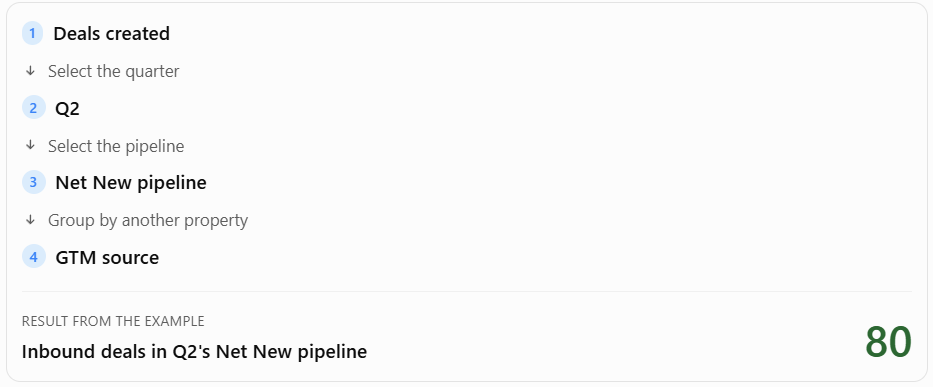
In this example, the drill-down reveals 80 inbound deals in the Net New pipeline during Q2.
Previously, getting that level of detail could involve reviewing individual rows or creating additional reports. Now, you can group the data using properties already included in the report.
You can also export the data or save the drill-down view as a separate report if you want to revisit that specific breakdown.
This is primarily an improvement to the existing reporting experience, with the additional grouping functionality making it easier to explore your numbers.
Duplicate Management Adds Similarity Scores
Finding duplicate records is one thing, but deciding which potential duplicates to review first is another.
And poor data quality can have real consequences. According to Validity's 2025 State of CRM Data Management report, 37% of surveyed CRM users reported losing revenue as a direct result of poor data quality.
HubSpot has added a similarity score column to duplicate management, giving teams another way to evaluate and prioritize records that may be duplicates.
The score comes from HubSpot's default duplicate detection model and indicates how similar two records are.
You can filter potential duplicates by their similarity scores, making it easier to focus on records that meet a particular threshold.
The available ranges differ for contacts and companies.

For example, you could filter contacts to show only potential duplicates with a similarity score of 90% or higher.
If you're reviewing company records, the available filtering range starts at a higher threshold of 80%.
These scores help organize the review process, but they shouldn't be treated as automatic confirmation that two records are duplicates. Teams can still review and reject potential duplicates directly from the interface.
Can You Customize the Similarity Rules?
Yes, but it depends on your HubSpot subscription.
Data Hub Enterprise is required to create custom similarity rules.
With Data Hub Professional, you're limited to HubSpot's default duplicate detection model.
One important detail is that the exact properties used in HubSpot's default similarity calculation aren't fully established here. The score provides a useful way to filter records, but you shouldn't assume it evaluates a particular set of properties without checking HubSpot's documentation.
To access the feature, navigate to Data Management → Data Quality → Manage Duplicates, where you can view similarity scores, filter potential duplicates, and review the results.
Want to see how HubSpot Data Hub and Clay compare when it comes to keeping your CRM data clean and usable? 👇
Manage the Data Model From One Centralized Location
As a HubSpot account grows, its data model can become difficult to navigate.
You may have multiple objects, custom objects, properties, and associations connecting different parts of your business.
HubSpot's centralized data model management experience brings those elements into one place, making it easier to understand how your CRM is structured and manage its configuration.
You can access it through Data Management → Data Model → Manage.
The interface includes two ways to explore your data model.
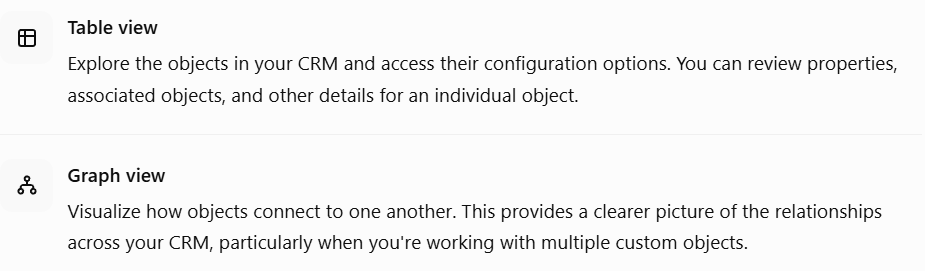
Beyond viewing the data model, the centralized interface provides access to several management functions.
Teams can:
- Manage properties and property groups.
- View the objects associated with a particular object.
- Manage associations and conditional logic.
- Create custom objects.
- View object usage.
- Activate or rename certain default HubSpot objects.
For example, you can select an object, open its options, and create a property or view its associated objects directly from the data model interface.
The graph view is especially useful when you need to understand how everything connects. You can also expand it to full screen, which helps when an account contains a large number of objects.
One permission requirement to know: Super Admin permissions are needed to change object structures or association labels.
For teams managing a complex HubSpot setup, having these capabilities in one location makes it easier to explore the existing structure and access the settings needed to maintain it.
Recap: What's New in HubSpot?
HubSpot's latest updates connect more of the revenue process, expand AI capabilities, simplify automation, and give teams more control over CRM data.
Here's what you need to know:
- Revenue Hub: Connect pricing, quotes, contracts, invoicing, and payments.
- Pricing: Manage variations with tiered pricing, price books, and quote rules.
- Contracts: Track upgrades, downgrades, and renewals in one history.
- Data Agent: Start with a few Smart Properties and scale what works.
- Claude Connector: Work with CRM data while keeping human approval for changes.
- Sales Hub: Schedule meetings faster and configure more approvals and pipeline rules.
- Workflows: Reference newly created records without always needing separate automation.
- Connected Apps: Manage integrations and organize workflows more easily.
- Marketing Hub: Reuse emails across campaigns, customize tracking, and unpublish forms.
- Customer Agent: Customize responses and set rules for human handoffs.
- Service Hub: Improve ticket emails, screenshot visibility, and skill-based routing.
- Reporting: Explore data through more flexible report drill-downs.
- Data Management: Prioritize duplicates and manage your CRM structure centrally.
Frequently Asked Questions About HubSpot’s Latest Updates
What are the latest HubSpot updates?
HubSpot’s September 2026 updates span Revenue Hub, AI, Sales Hub, Marketing Hub, Service Hub, automation, and data management. Key changes include expanded revenue management, improved AI tools, more flexible workflows, enhanced customer support features, and new ways to manage CRM data.
What is HubSpot Revenue Hub?
HubSpot Revenue Hub connects pricing, quotes, contracts, invoicing, and payments in one revenue process. It also introduces capabilities such as tiered pricing, price books, quote rules, and contract change tracking to help teams manage the customer agreement beyond the initial sale.
What new AI features are available in HubSpot?
HubSpot’s AI updates include Data Agent Smart Properties, an evolving Claude connector, and improvements to Customer Agent. Teams can use these tools to work with CRM data, test AI-powered processes, and handle initial customer support questions while maintaining human review and handoff procedures.
What has changed in HubSpot workflow automation?
HubSpot workflows can now reference records created earlier in the same workflow, making it possible to perform subsequent actions without always building separate automation. The Workflow Filing Agent also helps organize unfiled workflows by suggesting appropriate folders. As of September 2026, editing a newly created deal still requires a separate workflow.
What are the latest HubSpot reporting and data management improvements?
HubSpot has improved report drill-downs so users can group data by additional properties without repeatedly editing reports. Duplicate management now includes similarity scores, while a centralized data model interface makes it easier to explore objects, properties, associations, and CRM structure.