Most marketing-to-sales handoffs are a mess.
Usually, it’s just a name and an email address dropped into a CRM with zero context. And by the time a sales rep calls, the lead has already forgotten why they filled out the form, or worse, they’ve already moved on to a competitor who moved faster.
And the the data backs up this frustration as 53% of organizations report a broken handoff process where sales follows up on less than 35% of the engaged contacts marketing passes over. That means more than half of your marketing spend is likely dying in the gap between 'Interested' and 'Contacted'.
That's why a successful handoff isn't just about passing a lead...it’s about transferring knowledge so sales actually knows how to help.
Here's how to fix the gap using HubSpot.
TL;DR: The Handoff Cheat Sheet
- Stop the Manual Shuffle: Use HubSpot Score to trigger automated updates from MQL to SQL based on real intent (like viewing pricing).
- Context is King: Use HubSpot Breeze AI to summarize lead behavior.
- Speed to Lead: Automate Round Robin routing and Slack alerts.
- Close the Loop: Build a "Return-to-Nurture" workflow.
- Data Enrichment: Use Breeze Intelligence to automatically pull in company size and tech stack.
5 Steps to a Better Marketing-to-Sales Handoff
1. Defining the "Sales-Ready" Moment in HubSpot
The biggest handoff headache is when Marketing thinks a lead is ready and Sales believes otherwise. To fix this, you need a hard definition of what a qualified marketing-to-sales handoff actually looks like. If the rules are vague, your sales team wastes their time chasing people who just wanted a free PDF and have zero intention of buying anything.
Agree on three "Buy Signals"
Teams need to agree on three specific actions that prove someone is looking to buy. Avoid soft stuff like opening an email, and focus on high-intent signals that can be tracked directly in HubSpot.
Examples of what to look for:
- The Pricing Hit: A prospect visits your pricing page more than twice in two days.
- The Comparison Search: A lead downloads a "Us vs. Them" comparison sheet.
- The High-Value View: Someone watches most of a technical product demo or a webinar.
Not currently with HubSpot? Check out our video series on how to migrate to them 👇

Automate the handoff with HubSpot Score
Once you’ve picked your signals, don’t rely on a human to notice them. Use the HubSpot Score tool to assign points to these actions. This ensures the handoff is based on data, not just a gut feeling.
For example, you might decide that any lead who hits 50 points is officially ready for Sales:
- Requested a demo: +50 points (Instant handoff)
- Visited the pricing page: +15 points
- Checked the "Contact Us" page: +10 points
- Matches our target industry: +10 points
Once a lead hits that 50-point mark, use a HubSpot Workflow to change their status to SQL (Sales Qualified Lead) automatically. This removes the step of a manager manually approving every lead. The system sees the interest, calculates the score, and alerts a sales rep in real-time.
2. Handing Over the Context
In a great marketing-to-sales handoff, sales shouldn't have to ask, "So, what can I help you with?"
They should already know.
If your reps have to spend twenty minutes digging through a messy CRM timeline just to figure out why they’re calling, you're doing it wrong. A name and an email address aren't enough. You need to pass over the "why" behind the lead so Sales can pick up the conversation exactly where Marketing left off.
Stop the detective work with HubSpot Breeze
Don't make your team hunt for data, use HubSpot Breeze to summarize the prospect's journey. This AI tool scans months of marketing interactions, like specific email clicks, page scrolls, and content downloads, and condenses them into a quick brief at the top of the contact record.
- The old way: A rep sees "Contact filled out a form" and has to guess if they are a student, a looky-loo, or a buyer.
- The HubSpot way: A rep sees a summary: "This prospect spent 5 minutes on the 'Enterprise Pricing' page today, downloaded the 'Security Whitepaper' last week, and works at a 500+ person company in the Finance sector."
Why this changes the first call
When a rep has this context, they don't have to start with a generic "just checking in" call. They can jump straight to being a consultant. Instead of asking, "How can I help you?" they can say, "I saw you were looking at our security whitepaper; would it be helpful to walk through how we handle data encryption for larger teams?"
When marketing fuels sales with these high-intent, contextual leads, sales teams convert 65% more prospects into pipeline compared to cold outreach alone. Context is the difference between a 'hang-up' and a 'discovery call'.
How to build the "Context Injection" in HubSpot
To make this work, you don't just leave the data in the timeline. You move it where Sales can see it immediately:
- Create a Custom Property: Call it something like "Sales Context Summary."
- Use a Workflow: Set a trigger for when a contact's Lifecycle Stage becomes SQL.
Master lifecycle stages in HubSpot in this HubSpot Academy series featuring our own Shadab Khan 👇
.png?width=1422&height=797&name=shadab%20academy%20main%20(1).png)
3. Trigger Breeze AI: Use the "Summarize Contact" action within the workflow to populate your new custom property.
4. Update the Preview: Add that property to the "About this contact" sidebar in the CRM so it's the first thing the rep sees.
You can also include this summary in the Slack or Teams alert the rep receives. This ensures they have the full story in their pocket before they even open their laptop.
3. Matching Leads with the Right Expert
Assigning leads to whoever is next in line is a great way to kill a deal. If an Enterprise-level lead gets handed to a junior rep who only handles small businesses, the conversation is going to be awkward.
A successful marketing-to-sales handoff ensures the lead goes to the person best equipped to close it. In HubSpot, you can use Workflows to route leads based on specific logic rather than just hoping for the best.
Route by Territory or Industry
Don't make a lead wait for a rep who's asleep in another time zone. You can set HubSpot to look at a lead’s "State" or "Country" and automatically assign them to a rep in that region.
You should also route by Specialty. If you sell three different products, a lead interested in "Service A" should go to the rep who knows that service inside and out.
Common ways to filter leads in HubSpot:
- Company Size: Send companies with 500+ employees to your Enterprise team.
- Industry: Send healthcare leads to the rep who understands medical regulations.
- Product Interest: Match the lead to a rep who specializes in that specific product line.
Use "Weighted Rotations"
In HubSpot, you don't have to give everyone an equal share. If you have a top-performing closer, you can use Weighted Rotations to send them a larger percentage of the high-value leads.
For example, you could set your top rep to get 50% of new leads while your newer reps get 25% each while they are still learning. This ensures your best opportunities are always in the most experienced hands.
Don't Ignore "Vacation Mode"
There’s nothing worse than a lead sitting in an inbox for three days because a rep is on vacation. HubSpot allows you to check a rep’s Availability before assigning a lead. If a rep is out, the workflow automatically skips them and moves to the next available person. This keeps your "Speed to Lead" fast and ensures no one gets ignored.
4. Solving the Speed to Lead Problem
In 2026, 'fast' isn't measured in hours; it’s measured in seconds. Data shows that responding to a new inbound lead within the first 60 seconds can increase conversion rates by up to 391% compared to slower responses.
If your rep waits just 30 minutes to follow up, their chances of even connecting with that lead drop by 100x. By contrast, hitting that 5-minute window makes them 21x more likely to qualify the prospect.
A successful marketing-to-sales handoff has to happen in real-time. In HubSpot, you can use "Immediate Action" triggers to make sure a lead never sits idle in an inbox.
Connect HubSpot to Slack or Teams
To get a rep's attention immediately, you should push lead alerts directly to where they are already working: Slack or Microsoft Teams.
You can set up a HubSpot workflow that sends a direct message to the assigned rep the second a lead hits the SQL stage. Include the essentials in the alert:
- The lead's name and company.
- Their "Breeze AI" context summary (from Step 2).
- A direct link to the HubSpot record so they don't have to search for it.
The Automated "Personal" Intro
While the rep is getting the alert on their phone, HubSpot can also handle the initial greeting for them. You can set a workflow to send an automated "Intro" email that comes directly from the assigned rep’s personal email address.
Set a Safety Deadline
If a lead is assigned but the rep hasn't updated the "Lead Status" or made a call within two hours, you need a backup plan. You can build a Delay and Notification step into your workflow. If no action is taken by the deadline, the system pings a Sales Manager. This ensures that every handoff is completed and no high-value opportunity is left to go cold.
5. Creating a "Safety Net" for Leads
In most companies, if sales calls a lead and they aren't ready to buy right now, that lead is basically dead. The rep moves on, the contact sits idle in the CRM, and the marketing money spent to get them is wasted.
A professional marketing-to-sales handoff needs a "Return-to-Sender" option. If a lead is a good fit but the timing is just off, you need a way to send them back to Marketing without losing them in the shuffle.
Use a "Disqualification Reason" field
Don't let your reps just hit "delete" or "disqualify" and walk away. Create a mandatory field in HubSpot called Disqualification Reason. When a rep moves a lead out of their queue, they should have to pick a reason from a dropdown menu, such as:
- Bad Fit: (Wrong industry, too small, etc.)
- No Interest: (They just wanted the free ebook.)
- Timing: (They like us, but don't have the budget until next quarter.)
The "Return-to-Nurture" Workflow
If a rep selects "Timing" as the reason, you can set a HubSpot Workflow to take over automatically.
Instead of the lead just sitting there, the system moves them back into a Marketing Nurture sequence. They’ll start receiving helpful, low-pressure content, like case studies or industry news, to keep your brand top-of-mind. This ensures that when their budget is finally approved in 90 days, you're the first person they call.
Closing the Feedback Loop
By tracking why leads are being sent back, Marketing can see patterns.
- If 40% of leads are coming back as "Bad Fit," Marketing knows they need to adjust their ad targeting.
- If leads are coming back as "Timing," Marketing knows they're doing a great job, but maybe they need to focus more on mid-funnel education.
Marketing to Sales Handoff FAQ
What's the difference between an MQL and an SQL in 2026?
An MQL (Marketing Qualified Lead) is someone showing interest but still in the research phase. An SQL (Sales Qualified Lead) is a lead that fits your customer profile and has done something high-intent, like asking for a quote or booking a meeting.
How do I stop leads from being "ghosted" after the handoff?
Set up an SLA (Service Level Agreement) Workflow. If a lead sits in the "New" status for more than four hours without a rep logging a call or an email, have HubSpot trigger an alert to the Sales Manager. This ensures high-priority leads don't get buried.
Does AI replace the need for a Sales Rep?
No. Tools like HubSpot Breeze act as a research assistant, not a replacement. AI handles the boring work, like summarizing data and gathering company info, so the rep can spend their time on the human stuff, like building trust and solving problems.
How often should we update our lead scoring?
You should review your scoring at least once per quarter. Buyer behavior changes fast. If your "high-scoring" leads aren't actually closing, it’s a sign that your criteria are outdated and need to be adjusted to match what real buyers are doing today.
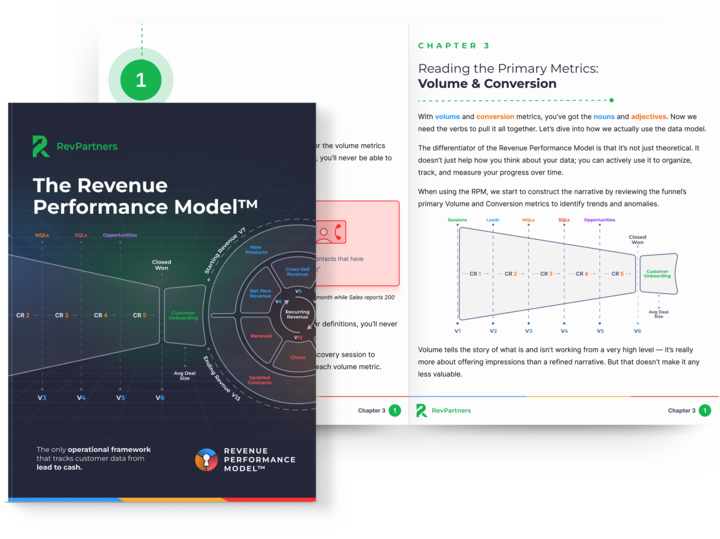
The Revenue Performance Model
Do you want to track the entire revenue journey in your CRM so you can see what's broken, why it happened, and where to fix it?
Download the Revenue Performance Model HERE